
Share this
by Omnidots on Oct 30, 2026, 2:42:31 PM
A clearer view of your monitoring projects.
Less clicking. More Control.
Monitoring projects shouldn't mean spending your day searching for information or struggling to create the reports you need. With Honeycomb's updated Overview Page and Custom Report Builder, you can see what's happening across your projects and create reports that work for you.
We've updated Honeycomb to simplify two key parts of your daily workflow:
-
Tracking your projects
-
Preparing reports
The Overview. Your Projects. One Clear View.
The updated Honeycomb Overview Page brings your most important monitoring information together in one clean, easy-to-navigate view.
At first glance, you'll find a quick summary of:
- Connection Alerts: See when monitors have connection issues that may need attention.
- Data Warnings: Identify potential issues with monitoring data storage.
- Status: Keep track of your monitors' online, offline, and inactive status.
See important alerts and project information as soon as you open Honeycomb.
Below the alert summary, the updated project overview makes it easy to find and manage your monitoring projects.
Search by project name, city, measuring point, or SWARM name. Switch between project and standalone views, filter by status, or use the project table to review monitor status and alerts.
Need to access project settings or export your project overview? You can access those options directly from the dashboard.
The goal is simple: less time navigating and more time focusing on your monitoring data.
Custom Reports: Make your reports work for you.
Every monitoring project is different. What you need to share with an engineer may not be what a project manager or your customer wants to see.
Honeycomb's Custom Report Builder gives you more flexibility in how you organize and present your monitoring information.
Instead of using a fixed report layout, you can customize the report template to better fit your project.

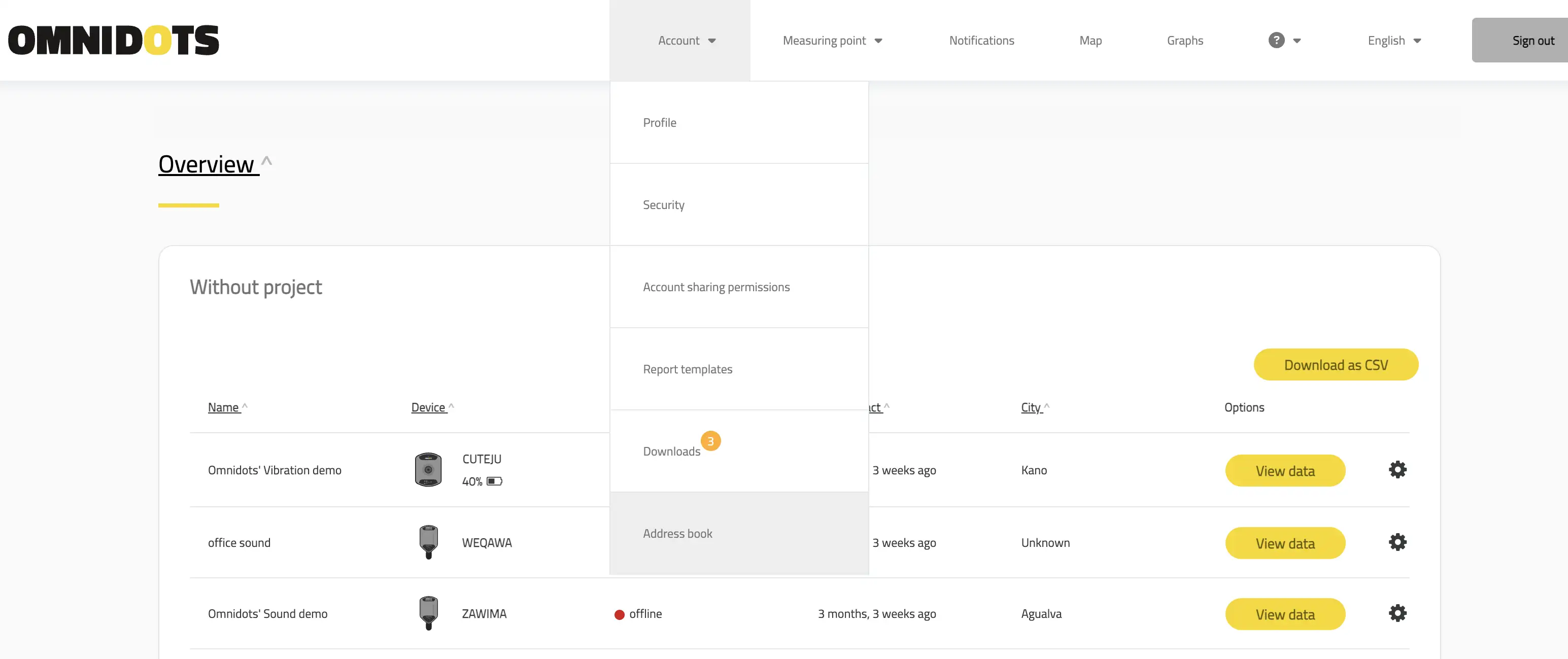
Access your report templates and open the editor to customize your reporting layout.
Build the report you need
The Custom Report editor lets you add and arrange elements directly within your report layout.
Available elements shown in the editor include:
- Text: Add explanations, notes, or other written information.
- Images and Image Galleries: Include supporting visuals.
- Tables: Organize information in a structured format.
- Page Breaks: Control where new pages begin.
- Rows and Columns: Arrange report content.
- Graphs: Add visual representations of monitoring data.
 Choose the elements you need and organize them within your report template.
Whether you're preparing a report for internal review or sharing monitoring results with a customer, the editor gives you more control over how the information is presented.
Preview before you save
You can review your report layout while working in the editor, use the preview option to check the result, and save your changes when you're satisfied.

Review your report layout before saving your template.
Make Your Reports More Informative with Attributes
Every monitoring project has details that go beyond the measurement data. With the new Attributes feature in Honeycomb, you can organize additional project information and supporting materials in one convenient location.
Attributes allow you to add and manage information associated with your projects and measuring points, including:
- Project logos – Keep your project or company branding organized.
- Maps – Store maps associated with your monitoring locations.
- Site images – Add photos to document site conditions or monitoring locations.
- Notes – Capture important project details and additional context.
- Custom attributes – Create additional fields to organize information specific to your project.
Attributes support text, images, and image lists, giving you more flexibility in how you document your monitoring projects.
Why does this matter?
By keeping supporting information alongside your monitoring data, it's easier to maintain consistent project documentation and have the information you need when preparing reports.
Getting Started with Attributes
Adding attributes is simple:
- Open your project or measuring point in Honeycomb.
- Select Attributes from the options menu.
- Click Add attribute to create a new field, or Edit to update an existing one.
- Add your information or upload supporting images.
It's another way Honeycomb helps you keep your monitoring data and project information organized in one place.
Get Started
The updated dashboard and Custom Report builder are designed to simplify your everyday Honeycomb workflows.
To explore the dashboard, log in to Honeycomb and open your project overview.
To access Custom Reports, navigate to Account → Reports, where you can view your existing templates or create a new report template.
Give the new features a try and see how they can simplify your next monitoring project.
Want to see how it works? Watch our step-by-step video tutorial to learn how to create and customize your reports in Honeycomb.